Getting Started

Install & Activate VidRivo Pro

Follow these steps to get set up in minutes — no technical knowledge required.

⏱  Average setup time: under 5 minutes
1
Download
2
Install
3
Purchase
4
Activate
5
Start downloading
1
Download VidRivo
Get the installer from the official website

VidRivo is a Windows desktop app. Download the installer directly from vidrivo.com — never from third-party sites.

  • 1
    Go to vidrivo.com and click the big Download Free button.
  • 2
    Your browser will download VidRivo-Setup.exe — save it somewhere easy to find (e.g. your Desktop or Downloads folder).
⚠️
Windows SmartScreen warning? This is normal for new software. Click "More info""Run anyway". VidRivo is safe — it contains no adware or browser extensions.

2
Install & Launch
Run the installer and open the app

The installer is quick — VidRivo will be ready to use in under a minute.

  • 1
    Double-click VidRivo-Setup.exe to start the installer.
  • 2
    Follow the on-screen prompts. The default installation folder is fine — no need to change anything.
  • 3
    Click Install, then Finish. VidRivo will launch automatically.
  • 4
    On first launch, VidRivo will silently install ffmpeg in the background — this enables HD video merging and MP3 conversion. A small progress bar will appear at the top of the queue.
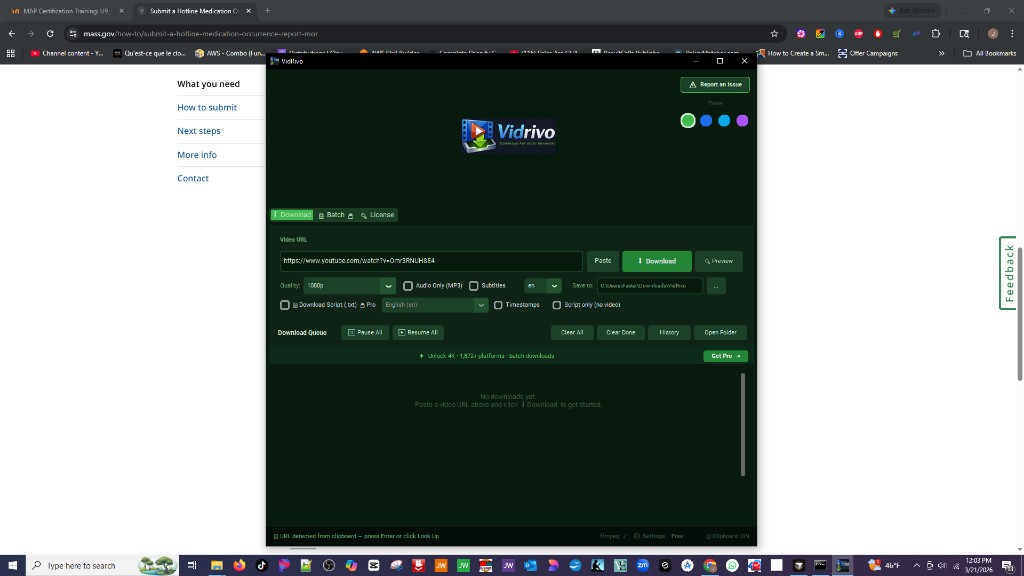
VidRivo — Main window after install
VidRivo main interface
💡
VidRivo works immediately in Free mode — you can download YouTube and TikTok videos right away, up to 1080p. Upgrade to Pro to unlock 4K, 1,872+ platforms, batch downloads, and more.

3
Get Your License
Purchase Pro and receive your license file by email

Your Pro license is a small .mdl file that unlocks all features on your machine. It's delivered automatically to your email seconds after payment.

  • 1
    Go to vidrivo.com/checkout and pick a plan: 30-day free trial (no credit card — then $10/month), or $24/year.
  • 2
    For the free trial: enter just your name and email — no credit card needed. For paid plans: you'll be taken to Stripe's secure checkout. Your card details are never stored by VidRivo.
  • 3
    Check your inbox for an email from licenses@vidrivo.com — it usually arrives within 30 seconds. Check your spam folder if you don't see it.
  • 4
    Download the attached vidrivo_pro.mdl file from the email. Save it to your Desktop or Downloads folder.
ℹ️
Still haven't received the email after 10 minutes? Email licenses@vidrivo.com with the address you used at checkout and we'll resend it immediately.

4
Activate Your License
Import your .mdl file into the app

Activation is done entirely inside VidRivo — no internet connection required. Your license is cryptographically signed to your Device ID so it works offline.

  • 1
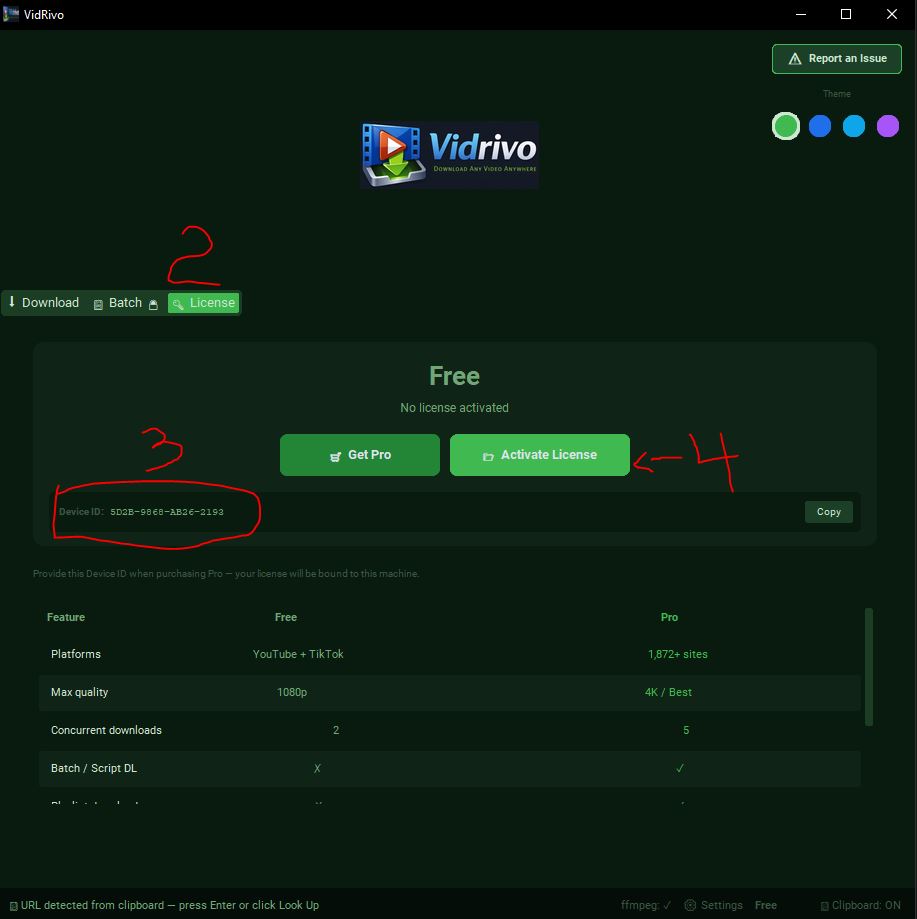
    Open VidRivo and click the 🔑 License tab at the top.
  • 2
    You'll see the Free tier screen with your Device ID at the bottom. Note that the Device ID is unique to your computer — your license is bound to it.
  • 3
    Click 📂 Activate License.
  • 4
    A file picker will open. Navigate to where you saved vidrivo_pro.mdl and click Open.
License tab — what you'll see before activation
License tab showing Free status, Device ID, Get Pro and Activate License buttons
① License tab (Free)
1 Click the 🔑 License tab
2 See your current tier: Free
3 Your Device ID is shown here
4 Click 📂 Activate License
💡 What is a Device ID?
Your Device ID is a unique fingerprint of your computer. When VidRivo generates your license, it's cryptographically signed to this ID — meaning the license only works on your machine. If you ever need to transfer it (e.g. new PC), just email licenses@vidrivo.com.
  • 5
    A confirmation popup will appear: "License Activated". This confirms the file was valid and accepted.
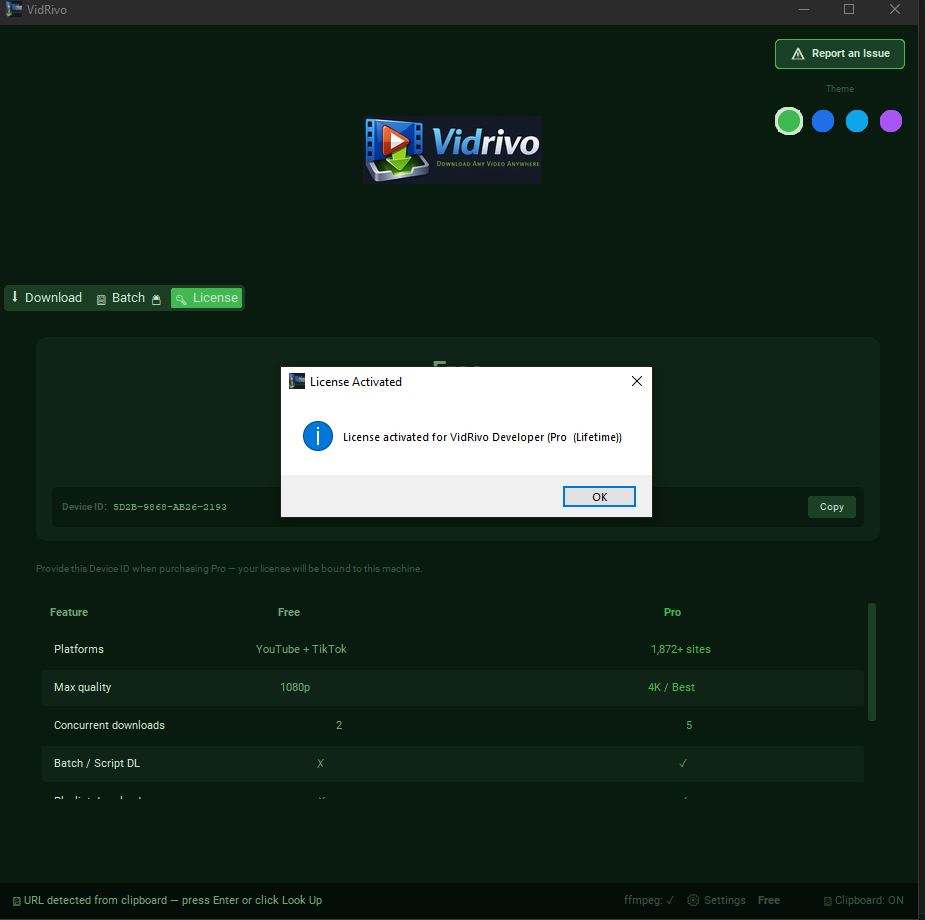
Step 5 — Activation confirmation
License Activated confirmation dialog
  • 6
    Click OK to dismiss the confirmation. A second dialog will appear asking you to restart the app.
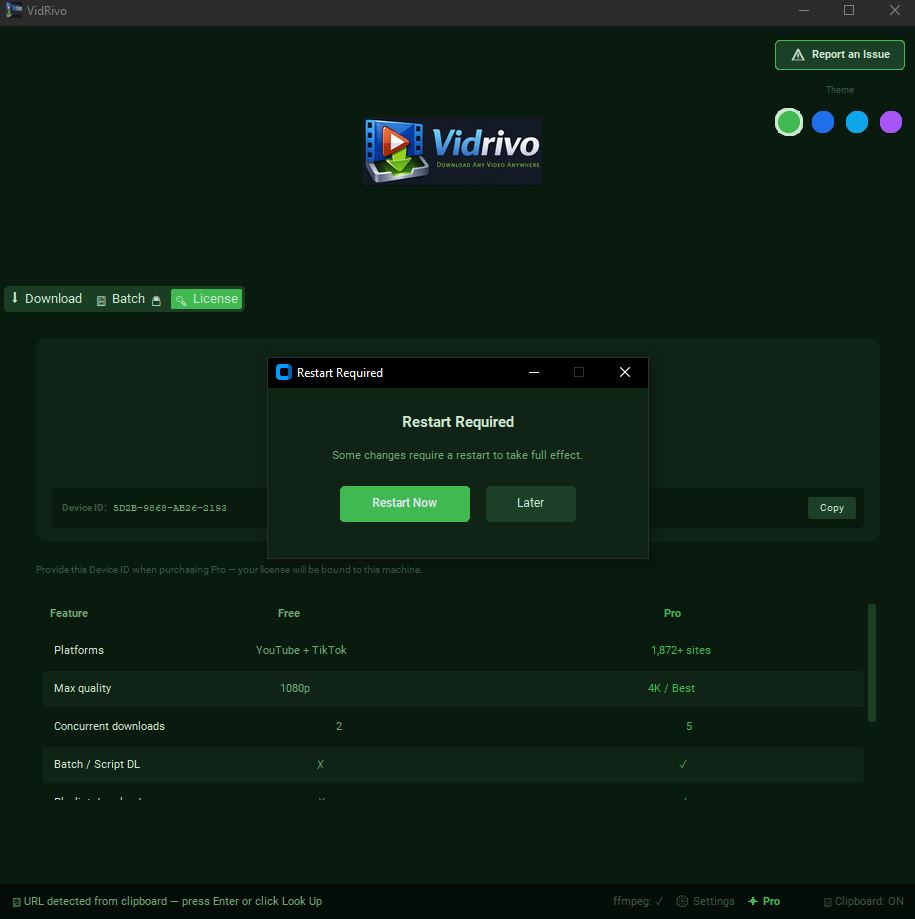
Step 6 — Restart required
Restart Required dialog with Restart Now and Later buttons
  • 7
    Click Restart Now to apply your license immediately. VidRivo will close and reopen automatically.
⚠️
Don't click "Later" if you have active downloads — restarting will cancel them. Finish your downloads first, then restart.

5
Verify & Start Downloading
Confirm Pro is active and download your first video

After restarting, your Pro license will be active. Here's how to confirm it and make your first download.

  • 1
    After restart, go to the 🔑 License tab. You should see Pro ✦ with your name and email. The status bar at the bottom also shows ✦ Pro.
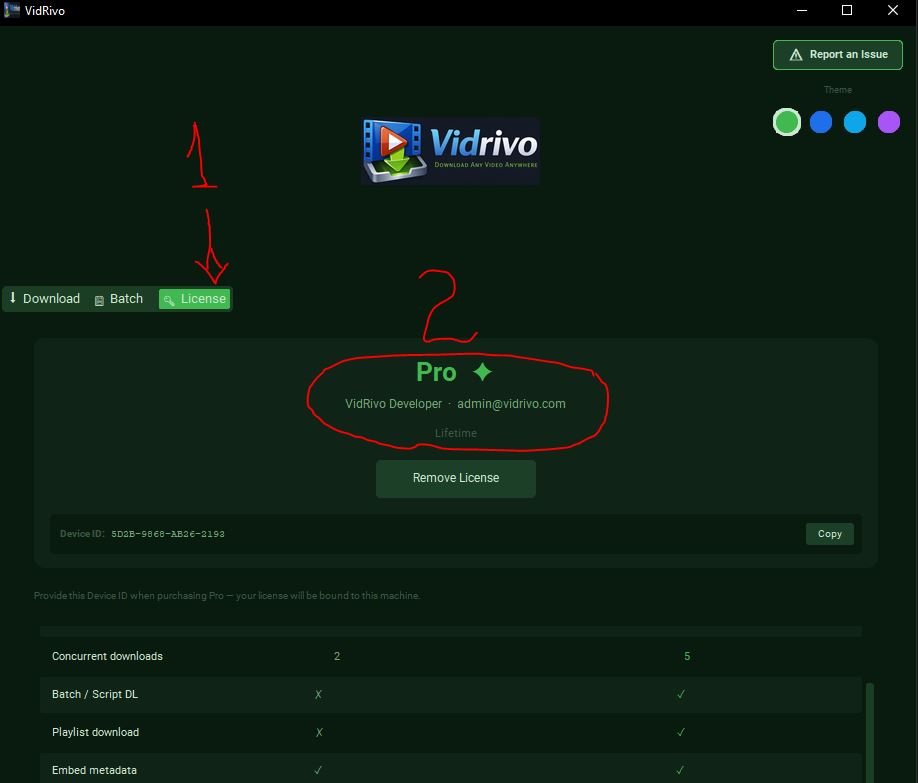
License tab — Pro license verified ✓
License tab showing Pro status with name, email and Lifetime label
  • 2
    Click the ⬇ Download tab to go back to the main screen.
  • 3
    Copy a video URL from any website (YouTube, TikTok, Instagram, Vimeo, etc.) — VidRivo will automatically detect it from your clipboard and fill it in.
  • 4
    Select your preferred Quality from the dropdown (e.g. Best Quality for 4K, or 1080p).
  • 5
    Click ⬇ Download. The video will appear in the queue and download automatically.
  • 6
    When complete, click 📂 on the queue card to open the folder containing your file.
💡
Pro tip: Use 🔍 Preview before downloading to see the video thumbnail, title, duration, and all available quality options for that specific video.

?
Common Questions
Quick answers to setup issues
I got the wrong license (wrong device) +
Your license is bound to the Device ID of the machine where you purchased it. To transfer it to a different computer, email licenses@vidrivo.com with your order details and the new Device ID (found in the 🔑 License tab). We'll issue a new license at no extra charge.
The "Activate License" button says the file is invalid +
This usually means the license was generated for a different Device ID. Make sure you're using the .mdl file that was sent to the email address you used at checkout. If you've reinstalled Windows or changed hardware, your Device ID may have changed — email us and we'll regenerate it.
I didn't receive the license email +
  1. Check your spam / junk folder for an email from licenses@vidrivo.com.
  2. Wait up to 10 minutes — delivery can occasionally be delayed.
  3. Email licenses@vidrivo.com with the email address used at checkout and we'll resend immediately.
The app shows "Free" after restarting +
Make sure you clicked Restart Now after activation (not "Later" without restarting manually). If you clicked Later, simply close VidRivo fully and reopen it. If the issue persists, re-import the .mdl file via the 🔑 License tab → Activate License.
How do I cancel my subscription? +
Use the "Manage billing" link in your Stripe receipt email, or email billing@vidrivo.com. We'll cancel within 24 hours. You retain access until the end of the current billing period.

Ready to get started?

Download VidRivo free, or go straight to Pro for unlimited access to 1,872+ platforms.